
The first time KurtCast opens, a welcome screen sets it up in a minute. Everything you choose here can be changed later in Settings.
Steps
Choose what KurtCast will be used for
Pick Church, School, Conference, Event or Business. This switches on the parts you are likely to need and sets the words the app uses. Nothing is locked: you can switch any part on or off later.
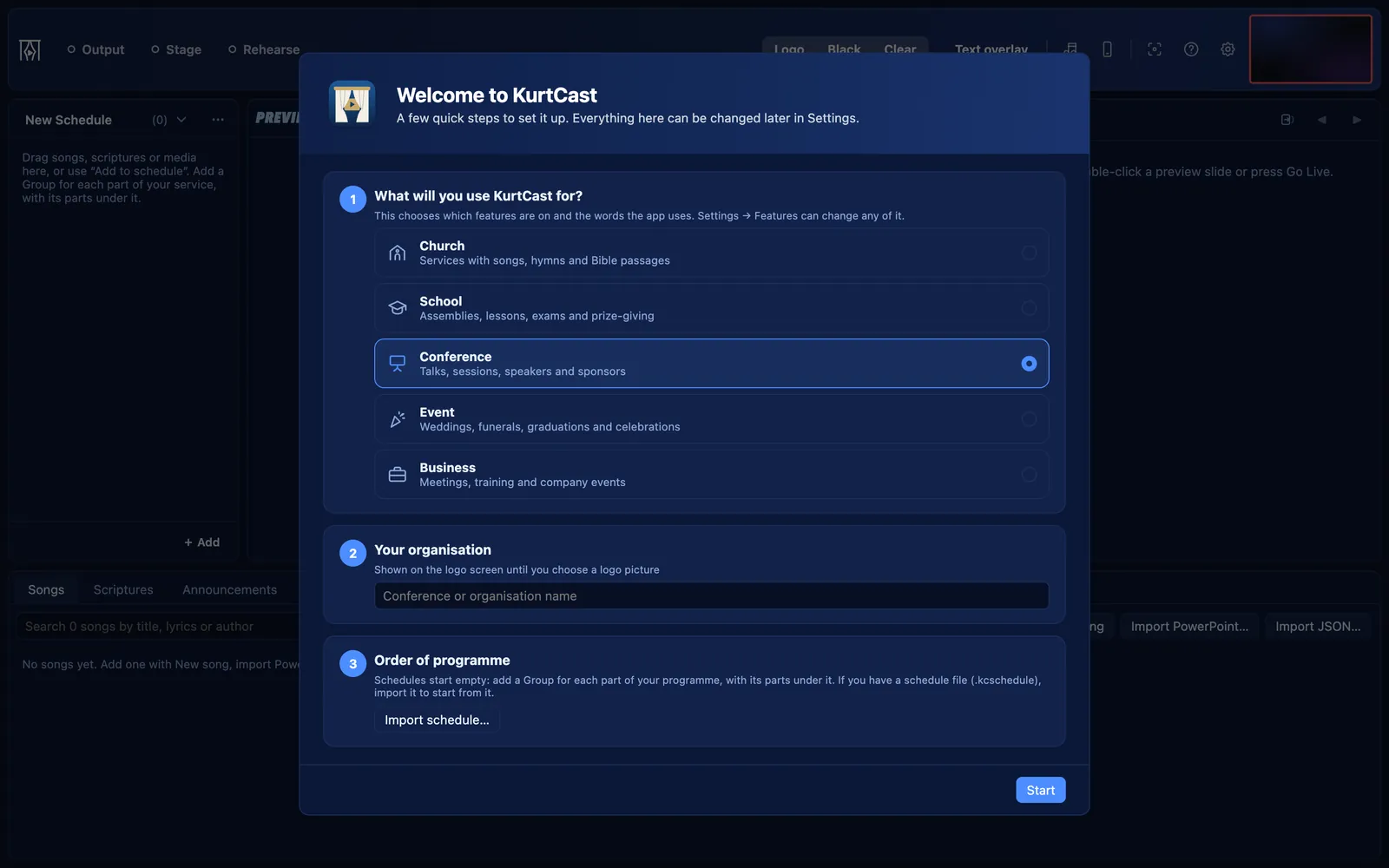
Type your organisation’s name
It shows on the logo screen until you choose a logo picture.
Start from a schedule file, if you have one
If someone has given you a schedule file (
.kcschedule), choose it to start from their programme. Otherwise you start with an empty “New Schedule”.Choose languages and Bibles, or a song pack
These steps show only when the parts they need are on: Languages and Bibles with Scriptures or a second language, and the song pack button with Songs and Song packs.
Finish, and add a logo
Press finish. To add a logo picture later, open Settings → General; the section is named after your organisation (Church, School, Organisation or Event). A preview shows what Logo puts on the screen.