
Applies to:
Steps
Preview first
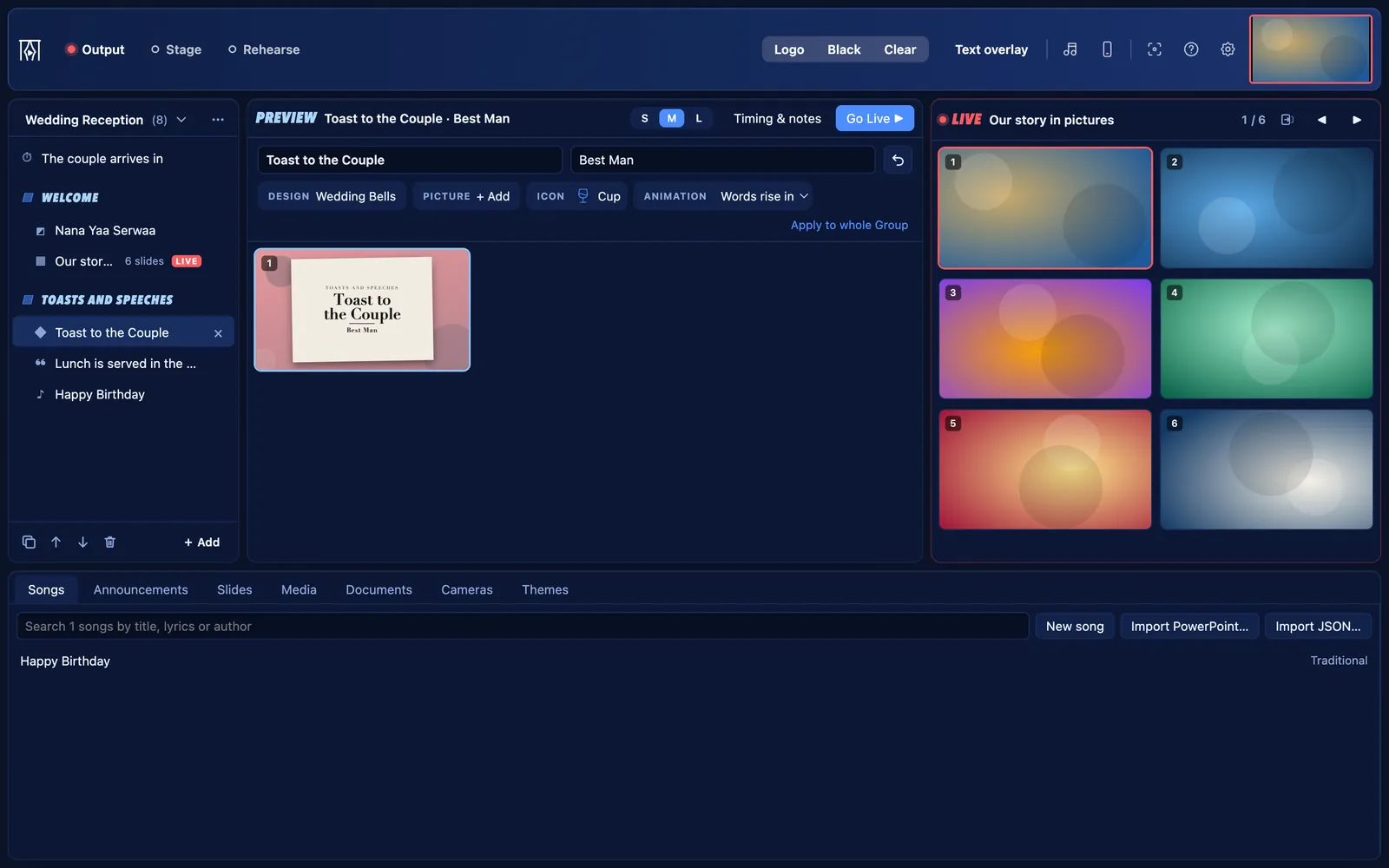
Click anything in the schedule or the tabs below to see its slides in Preview. Nothing you do in Preview changes the screen.
Go live
Press Go Live, or double-click a slide in Preview, to put it on the screen. The Live panel says LIVE while the output is open.
Move through the slides
Press → or Space for the next slide and ← for the previous one, or click a slide in Live.
Use Black, Logo and Clear
Black shows a black screen. Logo shows your logo. Clear keeps the background but hides the words. Each one switches on and off, and a video keeps playing underneath.
Rehearse before you start
Switch on Rehearse to practise: slides go live in the app only, the Live panel says Rehearsal in amber, and the screens keep what they showed until you turn it off.